4. Assign curriculum content & review results

Written by Elizabeth Carlson
Updated at October 21st, 2026
- What is Mathletics?
- 5 Simple Steps to Mathletics
- Mathletics Webinars
- How to get started with Mathletics
- Mathletics Teacher Console
- Mathletics Student Console
- Mathletics Parents/Home User
- Mathletics Administrator
- Mathletics Reporting
- Mathletics Rollover
- Mathletics Classroom Strategies & Tips
- 3 Essentials Dashboard
- Mathletics Classroom Printables
- Mathletics FAQ's
- What teachers are saying about Mathletics
Table of Contents
We offer both video and written content options for you to choose from. Watch this video now, or if you prefer, continue reading below.
Assign & Review
Check out our ‘Assign & Review’ section to assign tasks and homework to your students all from one place.
Simply click the 'Assign & Review' tab on the Teacher Console and follow the instructions below for each type of activity.
Assign Activities
- Log into the Mathletics Teacher Console.
-
Go to 'Assign & Review' on the left-hand side.

-
Select ‘Assign and Review’.

-
Using the dropdown bars in the top left, select the 'Class', and the 'Group'.
- Select the number below the student's name.
-
Select View Assigned, Completed and Overdue tasks.
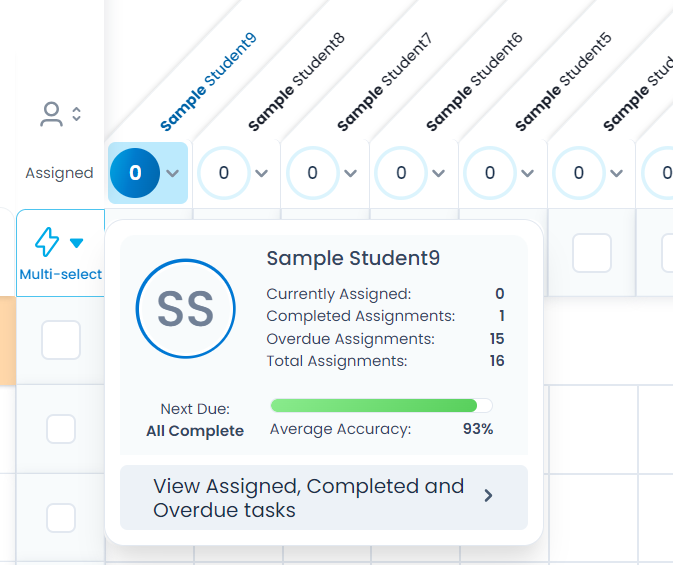
Tip: To unassign any of the activities in this list, tick the box next to the activity name and click 'Unassign' at the bottom.
Assign Challenges
Mathletics offers over 700 Challenges (PSR) to help students develop their critical and creative mathematical thinking. Teachers are provided with instant access to multi-level questions that can make mathematics lessons extraordinary. The challenges (PSR questions) can be filtered from topics to grades/year levels to a depth of knowledge.
- Log into the Mathletics Teacher Console.
-
Go to 'Assign & Review' on the left-hand side.
-
Click the ‘Assign & Review' tile.

-
Click ‘Challenges’.
Here you will find all challenges (PSR activities) that can be assigned to your students.
-
Using the dropdown bars in the top left, select the 'Class', and the 'Group'.

-
Select the Level of the challenge (PSR activity) you wish to assign.
-
To assign an activity, tick the activity box for the selected student. To assign the activity to the group tick the box beside the activity name.

-
Click ‘Assign’ at the bottom of the page. The assigned challenges will appear in the
To-Do tab, under Challenges in the Student Console.
Follow-up tip: If you need any assistance or more information about assigning challenges, there’s a walk-through video available. Simply click the “How this works” button in the top right.
Skill Quests
Each Skill Quest targets a single concept from within a topic or Learning Journey. Skill Quests are curriculum-aligned sets of questions. Some Quests will move through more than 1 level - students need to get either a streak of 5 questions correct or 6 out of 8 to complete the level or the Quest. Skills activities appear under the Quests tab on the Student Console. Audio is available to support students, including audio translation into many different languages.
Follow these steps to get started:
-
Click 'Assign & Review'
-
Click the ‘Assign & Review' tile.
-
Click ‘Skill Quests’.

- Select the 'Class', and the 'Group'.
- Select the Curriculum and Grade drop-down or scroll across to find your topic and choose the activity.
- Select the whole class or individual students.
-
Click ‘Assign’.
Assessments
Assessments in Mathletics now have one home. The new Assess area brings together finding, assigning, marking and reviewing assessments – work that used to be split across Assign & Review and Old Tests – so you can do it all from one central place as part of your regular Mathletics workflow.
Once you’ve signed in to Mathletics, click the Assess tile or select Assess from the left-hand menu in your Teacher Console.
Assess is organized into three tabs – Schedule, Manage and Results – plus its own report under Reports.
Find, preview and assign an assessment
1. Log into your Mathletics Teacher Console.
2. Select Assess > Schedule, then choose your class or group.
3. Filter by curriculum/standards, grade or search by assessment title.
4. Select View to preview the questions before you assign.
5. Select Assign, choose your students, and set start and end dates. You can also set a time limit if you want one.
6. Optional: select Preview > Questions to customize which questions are included, or shuffle the order they appear in.
NEXT UP Print student login cards